ScoreScan – frequently asked questions
Learn how to build a shared sheet music archive, import music and configure parts. Screenshots show the Swedish app.
How do we build a shared sheet music archive with AI?
Scanning, image processing and export run on your device without AI or an AI account. Using AI after export is optional.
- Agree on a shared destination folder and use the same part names. Each musician can scan at their own pace, one piece at a time, and save the finished parts there from ScoreScan.
- Under Files and Archive → Export folder, the librarian can choose Create library ZIP. Unpack the templates. ScoreScan supplies the Markdown instructions. You need your own account with a separate AI tool, such as Codex, Copilot or a similar tool that can read and work with the archive files.
- AI can suggest the piece, arrangement, part, key, tempo, arranger and musical style. The librarian verifies these suggestions and can add vocals, dance or the ensemble’s own tags. The guides explain how to build the main catalogue, track scanned parts and mark what is missing.
Can we build full forScore and MobileSheets libraries automatically?
Yes. A separate export workflow can build a complete library per instrument from a reviewed archive. It uses verified PDFs, archive numbers and metadata from the Excel catalogue. With a concert programme as input, the same workflow can build setlists in performance order. Whenever new scans are added, the librarian can refresh the delivery so musicians get current scores and lists.
The forScore and MobileSheets guides describe their respective exports. Check for missing parts and open sample scores and setlists in the target reader before distribution. ScoreScan handles scanning and delivery to the inbox. Archive sorting and package building run after export.
Can I import a screenshot of sheet music?
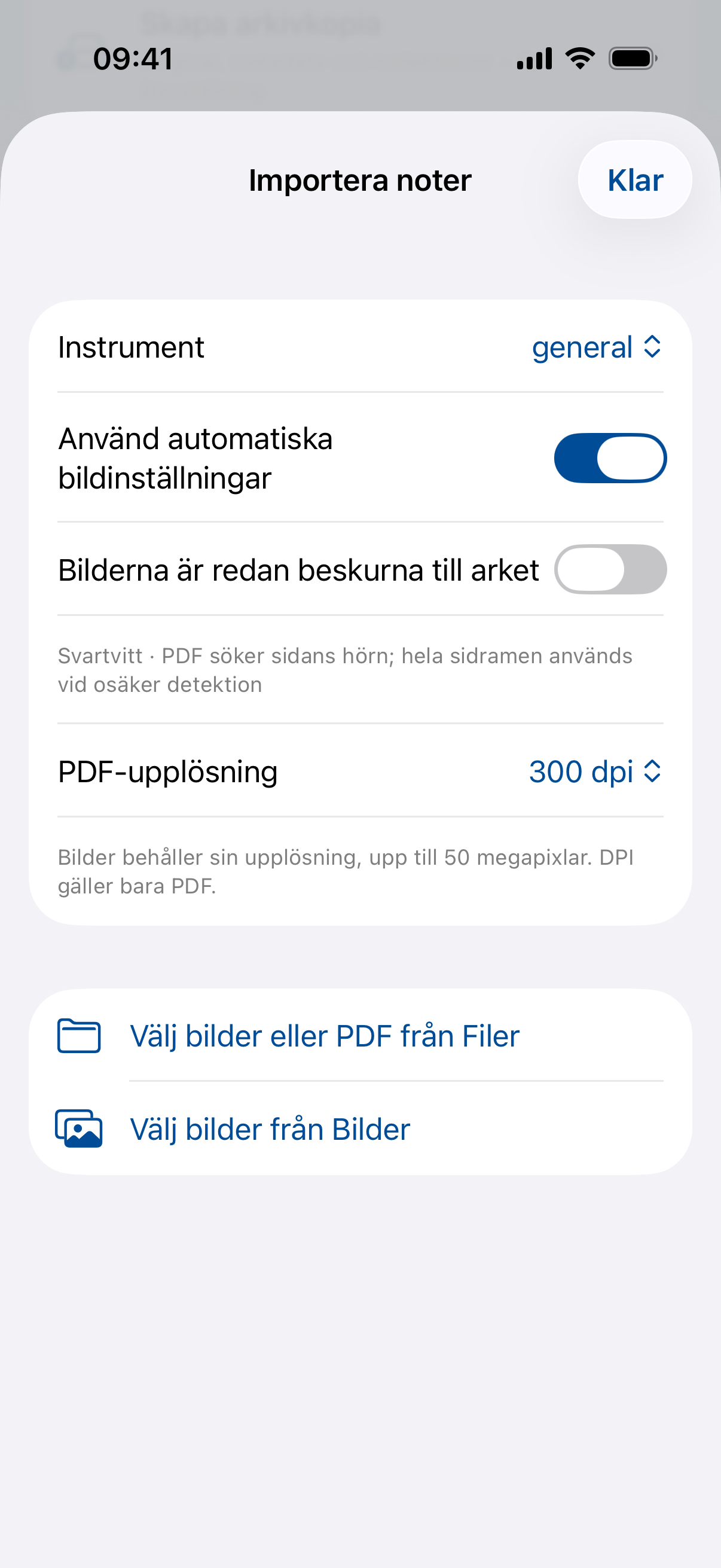
Yes. Save the screenshot to Photos. Open Scanned → the three-dot menu → Import sheet music → Choose images from Photos. You can also use the gear on the home screen → Files and Archive → Import sheet music. Choose the instrument and images, then tap Import.
Crop away app controls and anything outside the sheet first if possible. If the image already contains only the complete music page, enable Images are already cropped to the page. Otherwise, ScoreScan looks for the sheet corners. Use automatic image settings applies your saved preset. Review the result in Scanned; you can adjust corners and filters afterwards.
For now, each imported image or PDF page becomes a separate piece. Combine pages of the same part using Merge with previous in the document menu.
If you have the original PDF or image file, it is usually better than a screenshot. A screenshot only contains screen pixels; increasing the PDF resolution cannot add detail to it. The DPI setting applies only to PDF imports.
Can I choose instruments for a symphony orchestra or wind band?
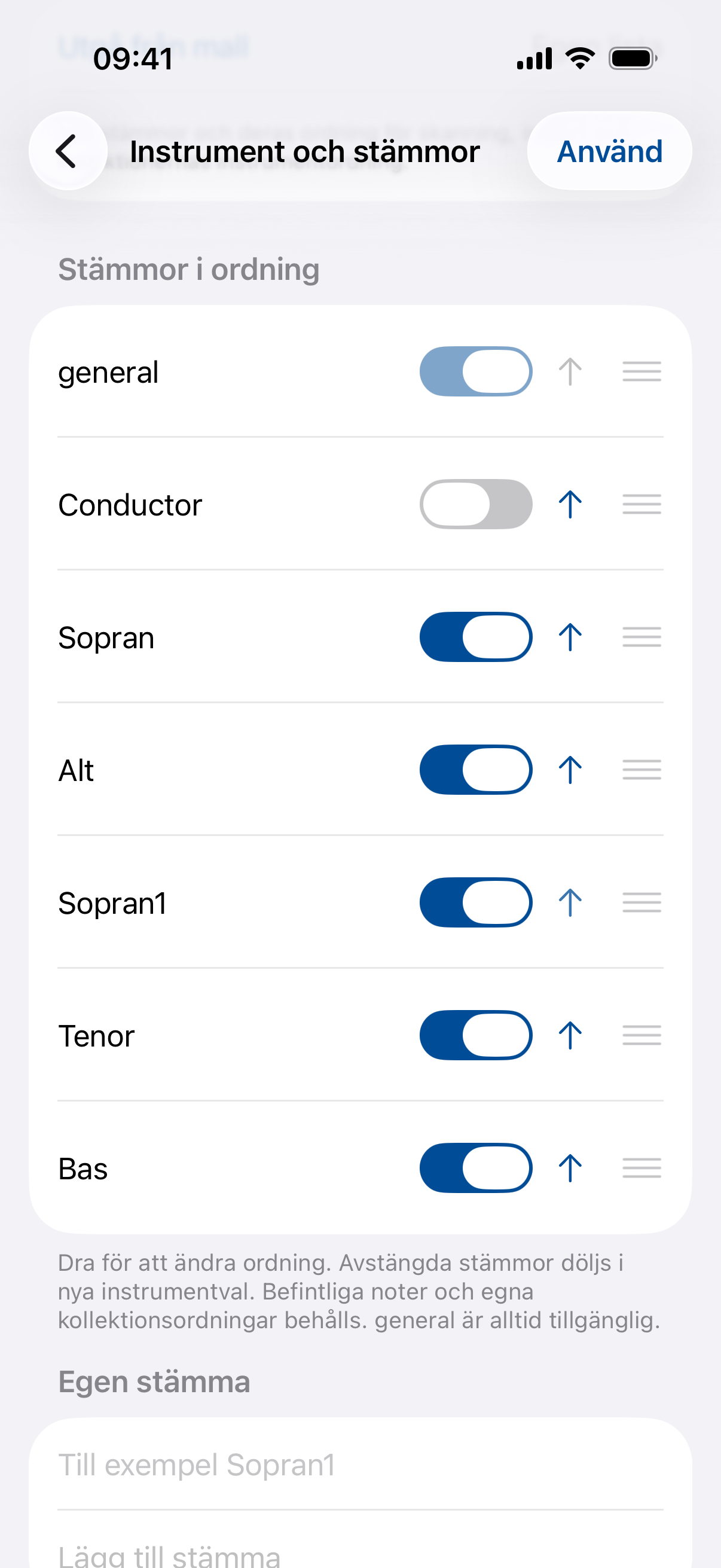
Yes. Big Band is a starting template, not a restriction. Open the gear on the home screen → Instruments and parts. Start from a template offers Big Band, SATB and Strings. The image shows SATB as an example.
You can already build your own list for a symphony orchestra or wind band. Enter names such as Flute1, Oboe1, Bassoon1 or Horn1 under Custom part and tap Add part. Hide parts you do not need using the switches, and drag or use the up arrow to change their order. Finish with Apply. Save any ongoing scan before changing the list.
Then select the part when you start scanning, or change it using the instrument name at the top of the camera. Use general for documents you want to leave without a specific instrument category. Existing scores keep their instruments when you change the list.
There are no ready-made symphony orchestra or wind band templates yet, but custom parts already work. Agree on shared part names when several musicians contribute to the same archive.